This mode generates an edited image from a source image. It does not directly edit or extend an uploaded video.
Revise an image before you animate it.
XVideo AI Image to Image revises a permitted adult image from a written editing brief. Change the light, material or background, then compare the result with the source before adding motion.
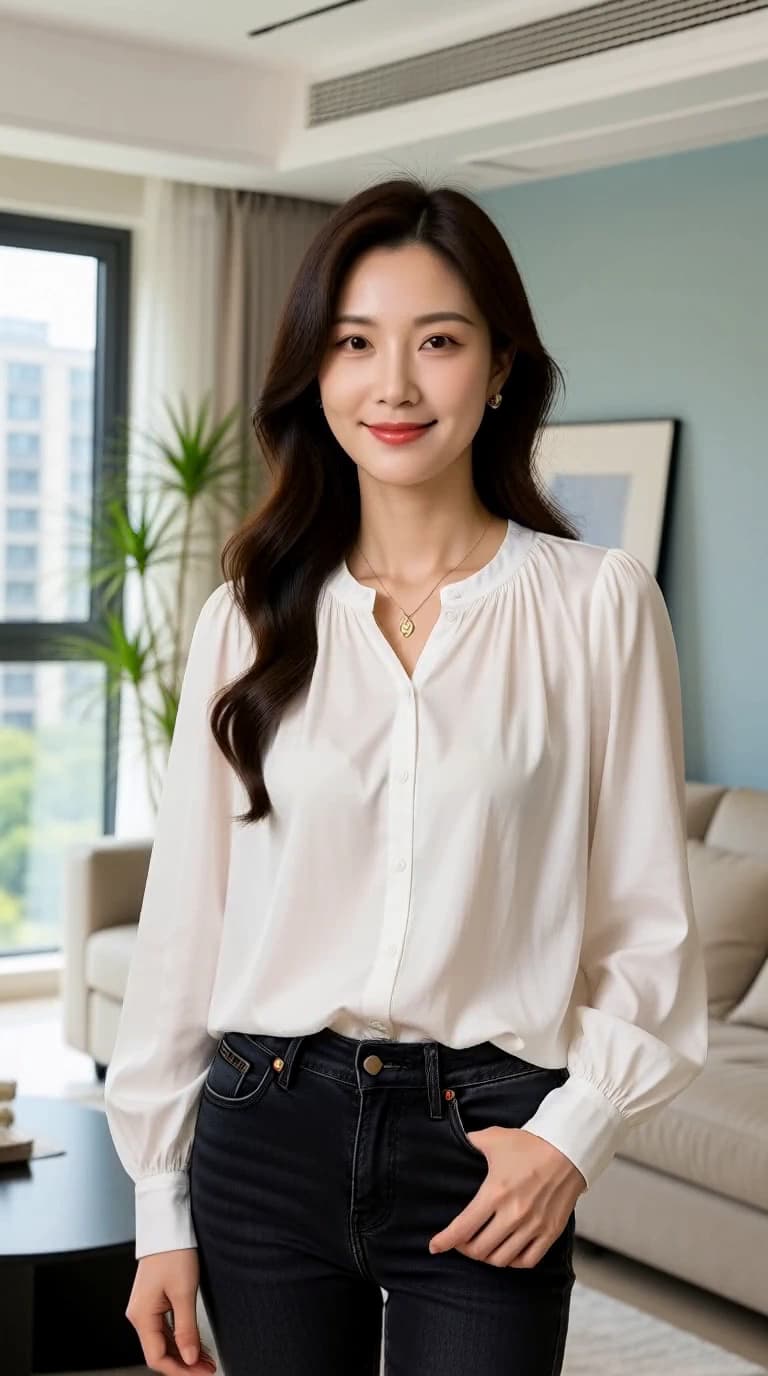
Separate the change from the source
A focused edit is easier to judge than a full scene transformation.
- 01
Choose permitted input
Upload an image you have the rights and consent to process. Check the selected model input requirements.
- 02
Name a specific change
Describe the intended lighting, material, background, or composition change without mixing several unrelated edits.
- 03
Compare the result
Check the subject and framing before deciding whether to revise again or continue to Image to Video.
Three editing intentions
These are illustrative prompts, not verified Image to Image output comparisons. Start with a permitted source and inspect what changes.
Swipe horizontally to explore all three examples.
Change the light
PromptUse soft window light from the left. Keep the subject pose, clothing, and background composition recognizable.
Identify the properties you want to keep as well as the change.
Simplify the setting
PromptSimplify the background into a softly lit theater wall. Keep the foreground subject and overall framing.
A simpler setting may make later motion easier to inspect.
Explore a material
PromptGive the fabric a muted silver finish. Retain the main silhouette and evening lighting.
Keep the edit focused on one material rather than the entire scene.
Choose controls for the edit
Name the property you want to change and the details you want to retain. Compare the face, clothing edges and background in the result before starting a separate video task.
| Goal | Focus on | Why it helps |
|---|---|---|
| Keep a useful reference | Clear source detail | The source should show the part you want to change. |
| Compare one edit | A focused prompt | Changing one property makes the result easier to evaluate. |
| Keep the composition useful | The aspect-ratio control | Review framing before a later video task. |
| Plan each task | The displayed Credit estimate | Editing and animation are separate generations. |
Review what changed and what stayed
Generated edits may alter more than you requested. Compare the output before using it.
- Too much changed
- Reduce the editing brief and state the main properties you want to preserve.
- The target is unclear
- Describe the visible area or material more specifically.
- The result is unsuitable for motion
- Choose a clearer composition or simplify the background before animating.
- The input is rejected
- Read the upload or content message and follow the current requirements rather than repeatedly submitting the same file.
Upload, task or playback issue? Find the matching troubleshooting step.
Image to Image questions
Answers about inputs, generation costs and the next step for this tool.
No. Generated edits can alter other details. Review the result and do not assume exact preservation.
Use a suitable edited result as an authorized input in Image to Video, then describe its intended movement. The video is a separate task.
Yes. You can write a prompt and inspect the public studio controls for free without signing in. Submitting an image or video generation requires an account and available Credits. First-generation guide
The Generate button shows the Credits needed for your selected model and output settings. Changing the setup can change the estimate; check the new amount before submitting. Pricing and Credits
Every depicted person must be an adult. Use original ideas and only process media you have the rights and informed consent to use. The content guidelines apply to every request. Content guidelines
Make one deliberate edit
Return to the generator with a permitted source and a focused change in mind.