This mode creates an image. Use Image to Video to generate motion from a suitable result.
Create a source image for your next idea.
XVideo AI Text to Image creates a starting still for an adult portrait or an original scene. Choose the subject, framing and light first. A suitable result can become an input for a separate Image to Video task.
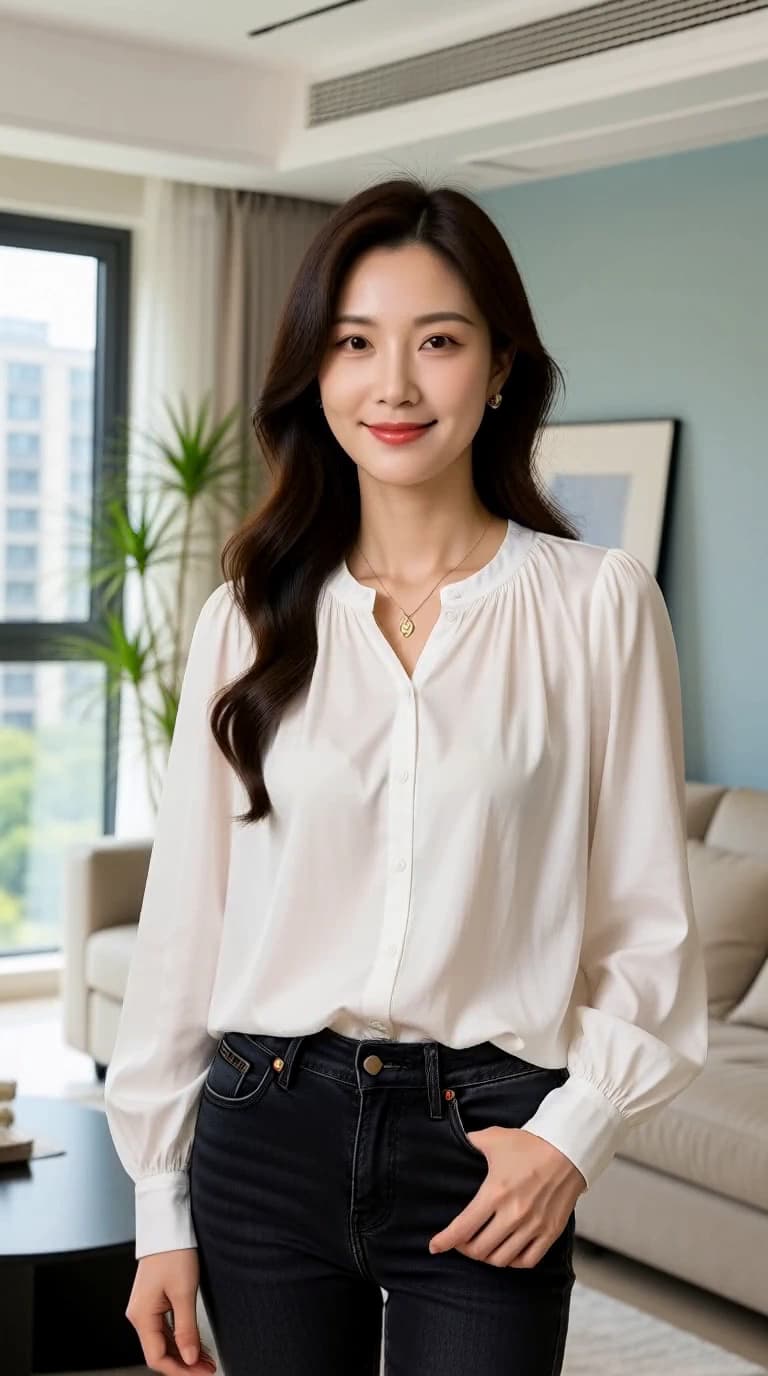
Build a clear image brief
A source image for animation benefits from a readable subject and room around it.
- 01
Establish the subject
Describe the fictional adult subject or non-person scene. Say what belongs in the frame instead of combining unrelated ideas.
- 02
Choose composition and light
Name the camera framing, background, and light direction. Leave visual space for any movement you intend to add later.
- 03
Inspect before reusing
Review the generated image and its available controls. If you plan to animate it, check the composition before sending it to Image to Video.
Image briefs with different jobs
These are illustrative image prompts, not verified Text to Image results. Use them to practice a clear composition brief.
Swipe horizontally to explore all three examples.
A simple portrait composition
PromptA fictional adult in a tailored coat beside a large window. Waist-up portrait, soft side light, uncluttered background.
A simple background leaves room to evaluate the subject.
A wide environment
PromptAn empty art-deco theater with red curtains and warm stage lights. Wide composition with a clear central aisle.
An environmental image can become a source for a restrained camera move.
Light and material
PromptA silver fabric installation on a rooftop at dusk. Soft reflections, clean silhouette, generous space around the subject.
Describe a few materials rather than competing visual styles.
Plan the image before the video
Use the offered image controls; prompt wording does not create extra output settings.
| Goal | Focus on | Why it helps |
|---|---|---|
| Choose a composition | Available aspect ratio | Frame for the intended destination. |
| Keep a readable subject | A focused prompt | Fewer competing elements are easier to assess. |
| Prepare for animation | Space around the subject | Allow room for the motion you plan to request later. |
| Review the cost | Current model and Credit estimate | Image and video tasks may have different requirements. |
Make the next revision specific
Review the image itself before deciding what to change.
- The composition is too busy
- Remove secondary subjects and competing styles.
- The framing is too tight
- Ask for a wider composition and choose a suitable offered aspect ratio.
- Lighting is inconsistent
- Choose one primary light direction and remove contradictory instructions.
- The source is hard to animate
- Try a clearer silhouette and simpler background before using Image to Video.
Upload, task or playback issue? Find the matching troubleshooting step.
Text to Image questions
Answers about inputs, generation costs and the next step for this tool.
Use the controls shown for the selected model. Available dimensions and aspect ratios depend on the published option.
Use the available image-reuse control or an authorized downloaded image with Image to Video. Review the source and the video model requirements first.
Yes. You can write a prompt and inspect the public studio controls for free without signing in. Submitting an image or video generation requires an account and available Credits. First-generation guide
The Generate button shows the Credits needed for your selected model and output settings. Changing the setup can change the estimate; check the new amount before submitting. Pricing and Credits
Every depicted person must be an adult. Use original ideas and only process media you have the rights and informed consent to use. The content guidelines apply to every request. Content guidelines
Make the first frame intentional
Return to the image generator with a clear subject, composition, and light direction.