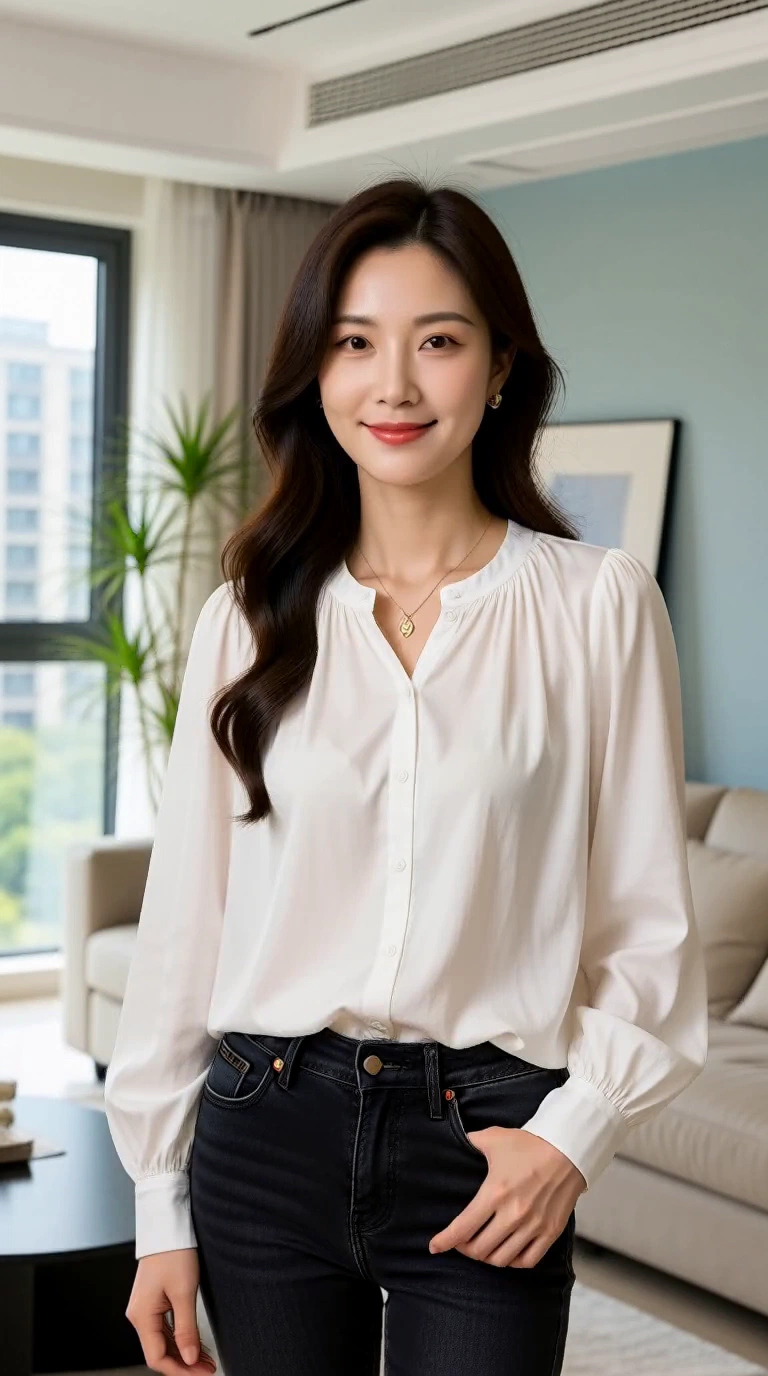
It generates a new video from an image and a motion brief. It does not recover a video that was originally used to create the still.
Keep your composition. Add deliberate motion.
XVideo AI Image to Video starts from a permitted adult image. Keep the source composition as your reference and describe the motion you want to add. Review changes to the face, clothing and background in the result.
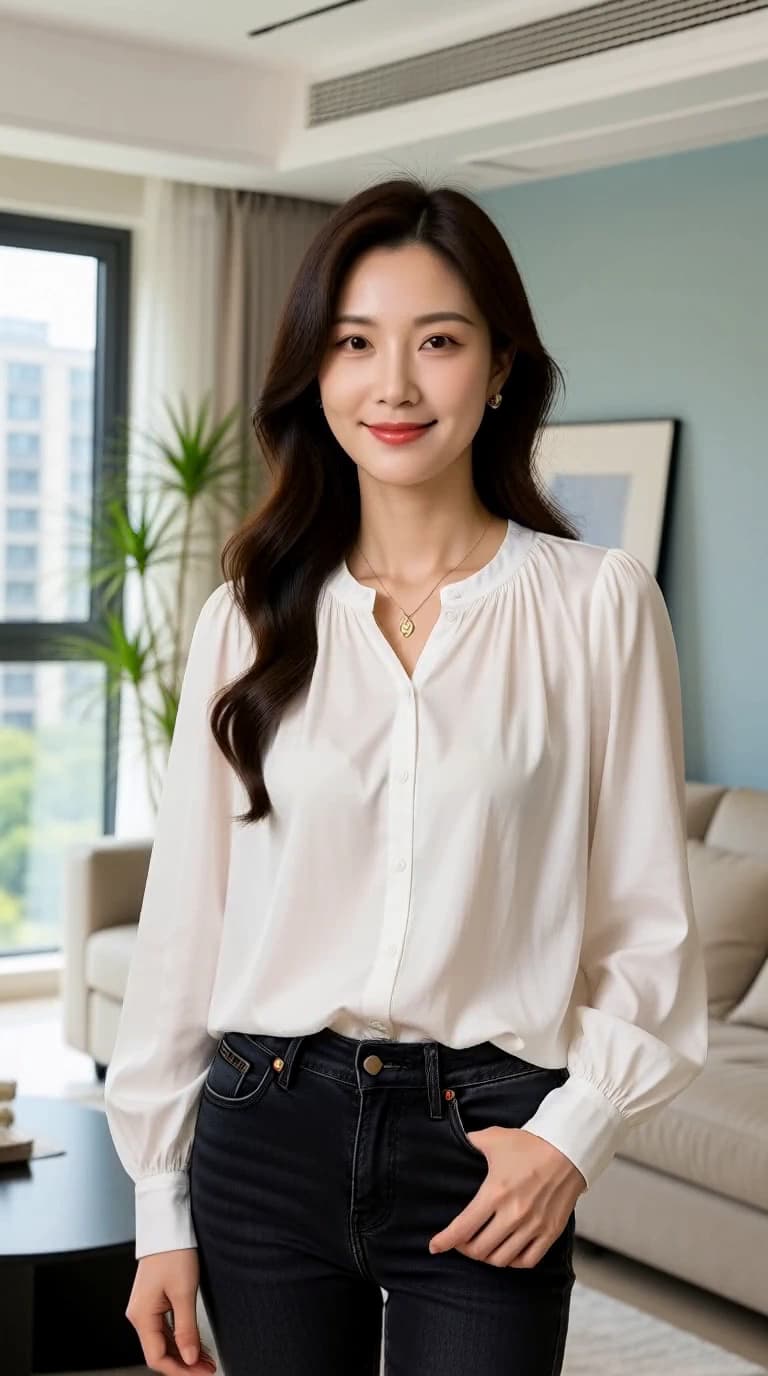
What this XVideo AI sample shows
What we saw. The head and upper body turn toward the window, then return toward the camera. The white blouse and room remain recognizable, but the shoulders and framing shift with the movement.
Try next. If retaining the source composition matters most, ask for a smaller turn and a locked camera. Treat that as a new direction to test, not a guaranteed correction.
Sample settings and limits
- Input
- Generated fictional-adult source image
- Model
- MiniMax H3 LoRA
- Requested
- 5s · 768p
- Original file
- 768 × 1344 · 24 fps · 5.17s
The movement is broader than the small head turn in the brief. Image to Video creates a continuation; it does not preserve every source detail or the exact opening framing.
These are observations from one clip. The suggested next brief has not been render-tested.
Prepare an image and a motion brief
A clear source and a restrained movement are useful starting points.
- 01
Choose a usable source
Use an image you have permission to process. Keep the main subject visible, avoid unnecessary overlays, and follow the upload requirements shown.
- 02
Describe the change
Ask for one subject movement. Add camera direction separately and keep the intended framing clear.
- 03
Check the selected option
Review the input requirements, available settings, and Credit estimate before submitting the image.
Motion briefs to adapt
These example prompts are illustrative directions, not verified Image to Video outputs. Upload your own permitted source image.
Swipe horizontally to explore all three examples.
A subtle turn
PromptThe subject turns slightly toward the light. Keep the camera still and preserve the background composition.
Start with small subject movement when the composition matters.
A slow push-in
PromptSlow camera push-in. The subject stays still. Keep the background and framing stable.
Do not combine a large camera move with several subject actions at first.
A small environmental change
PromptA light breeze moves the fabric and nearby leaves. Locked camera, restrained movement.
Name the part of the image that should change.
Match the setup to the source
Check the source edges before choosing the frame. Leave room around a face, hands or moving fabric so a small turn does not immediately push them out of view.
| Goal | Focus on | Why it helps |
|---|---|---|
| Keep the subject visible | Source composition | A subject near the edge may leave little room for motion. |
| Choose the frame | The aspect-ratio control | Review how a different ratio could affect the composition. |
| Test a restrained change | A short motion test | A simple action is easier to inspect than several movements. |
| Understand the requirement | The displayed Credit estimate | Review it again if the model or settings change. |
Refine the input before adding detail
Use the result to decide whether to change the image, the motion brief, or the setup.
- The result changes too much
- Use a clearer image and reduce subject and camera movement.
- The subject is cropped
- Start with more room around the subject and review the selected aspect ratio.
- The background moves unexpectedly
- Ask for a locked camera and a stable background; the result may still vary.
- The image cannot upload
- Read the upload error and the selected model requirements. Retry with a supported file rather than changing its extension.
Upload, task or playback issue? Find the matching troubleshooting step.
Image to Video questions
Answers about inputs, generation costs and the next step for this tool.
Use Text to Video for a scene written from scratch, or create a source image with Text to Image before returning here.
No exact preservation is guaranteed. Clear inputs and restrained motion can help you evaluate what changes, but you should review every output.
Yes. You can write a prompt and inspect the public studio controls for free without signing in. Submitting an image or video generation requires an account and available Credits. First-generation guide
The Generate button shows the Credits needed for your selected model and output settings. Changing the setup can change the estimate; check the new amount before submitting. Pricing and Credits
Every depicted person must be an adult. Use original ideas and only process media you have the rights and informed consent to use. The content guidelines apply to every request. Content guidelines
Give your image one movement
Return to the generator with a permitted image and a focused motion brief.