Text to Video builds from a written scene. Image to Video starts from an uploaded image, which provides the opening composition.
Describe a scene, then direct the movement.
XVideo AI Text to Video turns a written adult scene into a generated clip. Start without a source image, describe one action, and direct the camera separately.
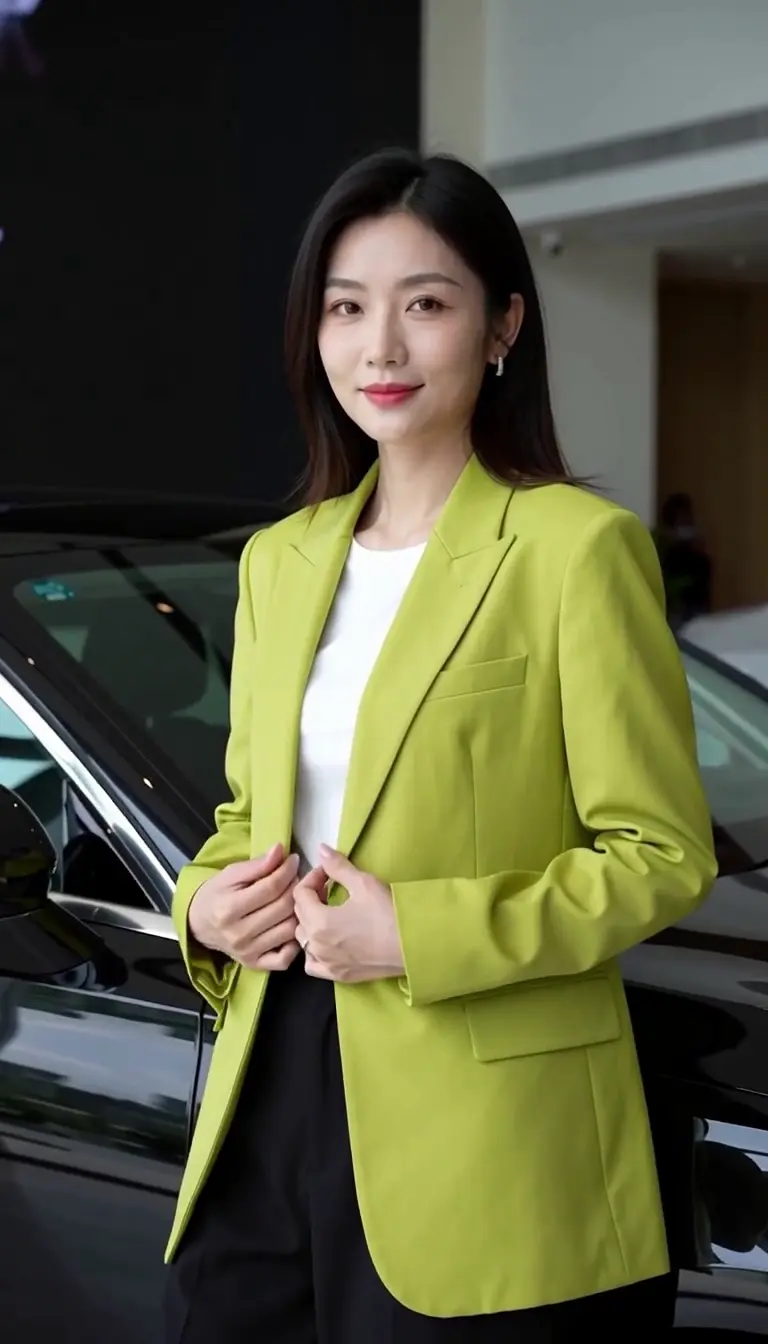
What this XVideo AI sample shows
What we saw. The subject turns from a side profile toward the camera while her hands move at the blazer lapels. The green jacket and car setting remain recognizable through the shot.
Try next. Test one gesture first. Keeping the pose simple makes the head turn and lapel movement easier to judge before adding a walk or a larger camera move.
Sample settings and limits
- Input
- Original text brief
- Model
- MiniMax H3 LoRA
- Requested
- 5s · 768p
- Original file
- 768 × 1344 · 24 fps · 5.17s
Hand positions change during the clip. Check fine finger and fabric details in the original video before using a frame; this sample does not establish consistent anatomy across generations.
These are observations from one clip. The suggested next brief has not been render-tested.
Write a shot the model can follow
Describe what the viewer should see, then say what changes during the shot.
- 01
Set the opening frame
Name the subject, setting, and framing. Keep the scene small enough to read as one shot.
- 02
Separate action from camera
Describe the subject movement first, then choose a locked frame, a slow push-in, or a tracking movement.
- 03
Review the available setup
Choose from the model settings shown in the workspace. Check the Credit estimate before you submit.
Three ways to direct a shot
These are illustrative prompt directions, not verified outputs. Use one as a starting point and adapt it to your scene.
Swipe horizontally to explore all three examples.
Keep the frame still
PromptA wide coastal landscape at sunset. Small waves move toward the shore while the camera remains still.
A fixed camera makes the movement in the scene easier to judge.
Follow the subject
PromptA fictional adult performer walks across a softly lit rehearsal room. The camera tracks slowly beside them in one continuous shot.
Use one clear action rather than a sequence of different scenes.
Move closer
PromptA quiet theater with closed red curtains. Slow camera push-in, warm stage lighting, no cut.
Specify the camera movement independently from the scene.
Choose settings for your scene
Start with a short shot to judge the action. Use the model controls for duration, resolution and framing; the prompt directs the scene rather than adding new settings.
| Goal | Focus on | Why it helps |
|---|---|---|
| Test the movement | A short test clip | Judge one action before adding complexity. |
| Frame for the destination | The aspect-ratio control | Compose for the screen where you will use the clip. |
| Compare a revision | The same setup with a revised prompt | Changing one variable makes the difference easier to evaluate. |
| Plan the cost | The displayed Credit estimate | Model and output settings affect the requirement. |
When the first attempt needs work
Change one part of the brief at a time so you can tell what helped.
- Too much happens
- Reduce the prompt to one scene and one continuous action.
- The camera moves unexpectedly
- State that the camera is locked, or choose one explicit movement.
- Details change between frames
- Simplify small details and competing actions; output consistency is not guaranteed.
- The request cannot start
- Read the message beside Generate. An empty prompt, missing input, unavailable model or insufficient Credits needs a different fix; use the help guide before retrying.
Upload, task or playback issue? Find the matching troubleshooting step.
Text to Video questions
Answers about inputs, generation costs and the next step for this tool.
You can describe it in the prompt. It is a creative instruction rather than a guarantee that the output will follow an exact camera path.
No. Select a supported output setting in the workspace. Writing a number in a prompt does not add an unavailable capability.
Yes. You can write a prompt and inspect the public studio controls for free without signing in. Submitting an image or video generation requires an account and available Credits. First-generation guide
The Generate button shows the Credits needed for your selected model and output settings. Changing the setup can change the estimate; check the new amount before submitting. Pricing and Credits
Adult and NSFW requests follow the same content guidelines. Every depicted person must be an adult, and any source media requires the rights and informed consent for its intended use. A content label does not guarantee that a model will accept a request. Content guidelines
Start with one clear scene
Return to the generator, describe the shot, and review its available settings.